

- How do I migrate Quadcept (CAD) from the 32-bit version to the 64-bit version?
-
Please check your currently installed version and follow the steps below to complete the migration.
Notice: End of Support and Availability for the 32-bit Version (April 2026)
Starting with the upcoming release (v11.1.0), Quadcept will no longer provide or update the 32-bit installer.
| V11.1.0 and later | The 3-bit installer will no longer be provided or updated. |
|---|---|
| V11.1.5 and earlier | You may continue using the 32-bit version; however, it will o longer be eligible for future support or security updates. |
To ensure continued security and access to the latest features, we strongly recommend migrating to the 64-bit version.
We have outlined the steps to check your current version and migrate to the 64-bit version below.
Please review tis information and take the necessary actions.
How to Check Your Current Version and Migrate
① Verifying if Your CAD is 32-bit or 64-bit
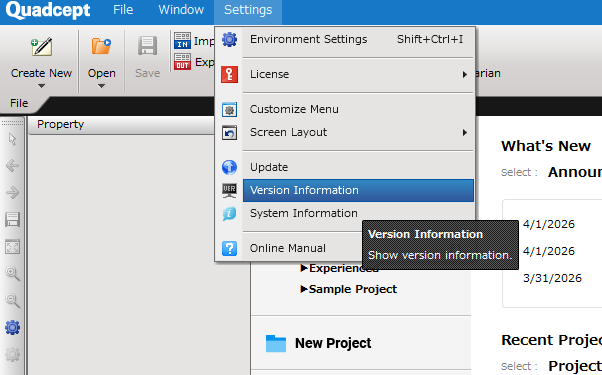
Launch Quadcept, then click on 【Settings】→【Version Information】 on the top menu bar.
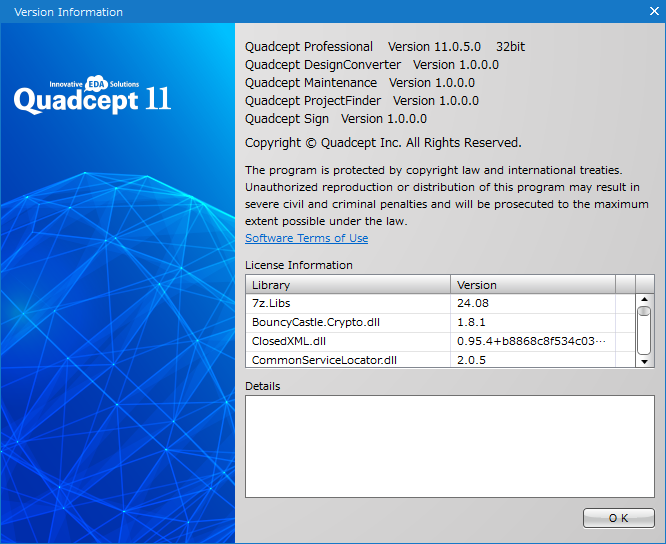
Check the bit architecture indicated at the end the first line in the displayed 【Version Information】 window. If it shows “32-bit” as seen in the attached image, please follow the migration instructions below to transition to the 64-bit version.
You can continue using your currently installed 32-bit version.
However, please be aware that it will no longer be supported.
②Migration Procedure to the 64-bit Version.
If yo are currently using the 32-bit version of the CAD, please follow the steps below to migrate to the 64-bit version.
How to Backup / Restore:
https://www.quadcept.com/en/manual/Quadcept%20Maintenance/post-325
While backing up your data is not strictly required, we highly recommend doing so as a precaution.
How to download the 64-bit version:
https://www.quadcept.com/en/manual/before_using/post-1
How to uninstall:
https://www.quadcept.com/en/manual/before_using/post-4
During the uninstallation process, you will be prompted with the message: “Do you want to delete the user data on this computer?” Please select “No.” If you select “Yes,” your user data will be deleted along with the application.
If you have any questions or require further assistance, please feel free to contact our support desk below.
Email Inquiry
https://www.quadcept.com/en/contact/
Phone Inquiry
+(81) 6-4802-1007
Service Hours:Weekdays 9:00 a.m. to 6:00 p.m. – JST
( Excluding Saturdays, Sundays, and public holidays )